Paywalled referring pages: how to verify your link is crawlable
Learn how to spot paywalled referring pages and confirm your backlink is visible to crawlers, not blocked by logins, scripts, or user-only states.
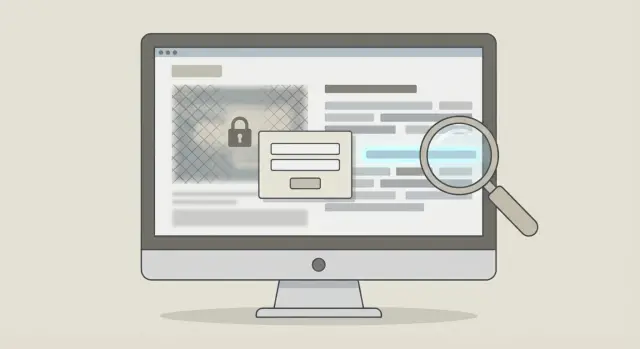
What the problem looks like (and why it matters)
A referring page is the page that links to your site. If search engines can access that page, the backlink can help with trust, rankings, and steady discovery of your pages. If search engines can't reach it, the link may still send human traffic, but it often does little for SEO.
This problem shows up when the page looks normal in your browser, but a crawler sees something different. You open the article, spot your link, and everything seems fine. Then weeks later the link never appears in your SEO tools, rankings don't move, or the referring page doesn't get indexed.
Paywalls and login walls are common causes:
- A paywalled page blocks content unless you pay. You might see only a preview, or you might hit a “subscribe” screen.
- A login-walled page blocks content unless you sign in, often used for communities, dashboards, and member-only posts.
- A soft paywall (metered access) lets you read a limited number of articles, then starts blocking you. You may not notice it if you haven't hit the limit yet.
“Crawlable” means a search engine can fetch the page and read the link consistently, without special steps. No signing in. No clicking “show more.” No content that only appears after user interaction. Ideally, the link is present in the page’s HTML when the page loads.
Also set the right expectation: a link can exist and still be low value. If the referring page is blocked, noindex, visible only to logged-in users, or depends on scripts and clicks to reveal the link, Google may not count it the way you expect. Even when a backlink is accessible, it can be weakened by placement choices like hidden sections, unusual redirects, or link attributes that tell crawlers not to follow it.
That’s why it’s worth verifying accessibility before you celebrate a new placement or renew a subscription. With paid placements or premium sources, the goal isn't just “I can see it.” The goal is “a crawler can reliably see it too.”
Common types of walls that can hide a backlink
When people talk about paywalled referring pages, they usually mean “I can see the page, but a crawler might not.” The tricky part is that many walls only show up when you view the page as a new visitor, in a different region, or without cookies.
Hard paywalls (content is blocked)
A hard paywall replaces the main article with a subscription prompt. Sometimes you still get a headline and a short preview, but the real content (including outbound links) is removed unless you pay.
Two patterns that often make backlinks disappear:
- The link is only inside the paid portion, which never loads for non-subscribers.
- The full article loads from a separate endpoint after payment, so crawlers may never fetch that version.
Login walls (must sign in)
Login walls are similar, but the gate is an account rather than a payment. Some sites show the full page to logged-in users and a simplified “please sign in” page to everyone else.
This matters even if you personally see the link. If your browser is signed in, you might be viewing a different version than Googlebot or a backlink checker.
Mild gating (the page is there, but access is interrupted)
Not every wall is a strict block. Some pages are viewable, yet still effectively hidden for crawlers or tools because the experience is interrupted.
Common examples include newsletter popups that prevent scrolling, cookie consent banners that block the content until you accept, regional restrictions that return different content (or errors), and rate limits that switch to a wall after a few views.
User-state pages (the link appears only after an action)
Some backlinks only show up after you scroll, click “load more,” open a tab, or expand a section. Others appear only for subscribed users, or only after a personalization script runs.
A real-world scenario: you open a post and see a “Resources” box with your link, but it only appears after clicking “Show sources.” A crawler that doesn't trigger that interaction may never see it.
Quick first checks you can do in 2 minutes
Paywalls and login prompts can show different content to different people. Before you do any deep testing, run a couple of fast checks to catch the most common issues.
1) Recreate a “fresh visitor” view
Open the referring page in a private window. Don’t log in, don’t accept offers, and don’t click anything yet. You want to see what’s visible before cookies, accounts, or subscriptions change the page.
As the page loads, ask: is your link present immediately, or does the page push you into an action first (sign in, subscribe, dismiss a modal, accept cookies)? If the link only appears after you interact, it may not be reliably crawlable.
2) Cross-check on a second environment
Do a quick “same page, different setup” test to spot cases where the page behaves differently depending on browser, device, or saved site data.
Try one or two of these:
- Open it in a second browser you don’t normally use.
- Check it on a phone using mobile data (not your home Wi-Fi).
- Reload once after the page finishes loading (some walls appear late).
If your link shows in one environment but disappears in another, you’re likely dealing with a wall, personalization, or a script-driven element.
3) Temporarily disable extensions that change pages
Ad blockers, privacy tools, and script blockers can remove banners and overlays, but they can also break page behavior in ways that confuse testing.
For a quick check, refresh once with your normal extensions enabled and once with them disabled. If the “unblocked” view is the only one that shows your link, don’t assume Google will see it the same way.
4) Note what exists before any interaction
Write down what you see before you scroll, click “accept,” close popups, or expand sections. A common pattern is a page that looks normal for a moment, then an overlay covers the content after a few seconds. If your link is only reachable after dismissing that overlay, treat it as an early warning sign.
Verify the link exists in the HTML (not just on screen)
A link can look perfect in your browser and still be invisible to crawlers. This happens a lot when what you see is built after the page loads, after you accept prompts, or after a script checks your user state.
Start simple: use Find (Ctrl+F or Cmd+F) for your brand name, your domain, or a unique part of the URL. If Find can't locate it, that’s your first hint the link might not be in the raw page.
Check the page source, not the rendered view
Confirm the link is in the HTML the server sends. Right-click the page and choose “View page source” (wording varies by browser), then search for your domain.
- If you find your URL in page source, that’s a good sign. The link exists without needing extra clicks or account states.
- If you can’t find it in the source, the link may be injected later by JavaScript (or only shown after login, cookie consent, or a subscription check). That setup is higher risk because crawlers may not see the same thing you see.
A clean order of operations:
- Find your domain on the rendered page (what you see).
- Find your domain in “View page source” (what the server sends).
- If it’s missing from source, open Inspect and search for your domain there (the final DOM after scripts run).
- Refresh once and re-check. Some walls or scripts behave differently on reload.
Inspect can be useful, but “page source” is the key checkpoint if you want maximum crawl reliability.
Make sure it’s your URL, not a disguised redirect
Even if you find the link in HTML, confirm the actual href points where you think it does. A common trap is visible text that looks like your site, while the HTML points to a tracking or redirect URL.
Hover the link and look at the browser’s status bar (or copy the link address). Redirects often show a different domain, a long parameter string, or paths like /redirect/ or /out/.
Tracking redirects aren't always bad, but they add uncertainty. If you're paying for placement, it’s reasonable to want the link clearly present in HTML and to resolve cleanly to your site without depending on user clicks, scripts, or session-specific states.
Check if scripts or interactions are required to reveal the link
If a link only appears after you click, scroll, or accept something, it can be invisible to crawlers. Google can render some JavaScript, but it usually doesn't behave like a human. It may not click buttons, fill forms, or keep the same user state you do.
A fast way to spot trouble is to reload the page with JavaScript disabled. If the link disappears (or the section becomes blank), the backlink is probably being injected by scripts or revealed only after interaction.
Quick interaction tests
Run a few simple checks:
- Disable JavaScript, refresh, and search for your brand or target URL.
- Hard refresh and don’t scroll. See if the link is visible above the fold.
- Open the page in a private window to remove stored cookies and “remembered” choices.
- Decline or close consent prompts and see whether content stays blocked.
- Look for “Load more”, “Read more”, tabs, accordions, or infinite scroll sections hiding the link until triggered.
If any step is required, write down the exact trigger. “Visible immediately” is very different from “I had to scroll and click Load more.”
Common cases that fool people
Some pages show a preview to new visitors, then change layout once a cookie is set. Others keep the article behind an overlay until consent is accepted. To a person, it can still feel readable. To a crawler, it can be inconsistent.
When you find a dependency, note what must happen for the link to appear: which button, which popup, how far you scroll, and whether you need to be logged in.
Detect login and subscription states that change what crawlers see
A page can look perfect when you're logged in, yet show something totally different to Google and other crawlers. This is one of the most common traps: you confirm the link on your screen, but the public version has no link at all.
Test the same URL in a clean state (private/incognito, or a different browser profile with no cookies). If the link disappears, moves into a member-only area, or gets replaced by a locked widget, assume crawlers may not see it either.
Quick ways to spot user-state problems without special tools:
- Open the page in an incognito window and search for your brand/domain.
- Log out (or clear cookies) and reload. Compare what changes around the link area.
- Try the page from another device where you’ve never logged in.
- Watch for “preview” or “sample” labels and compare what they remove.
- Look for URL patterns like
account,dashboard,members, orbilling.
Some paywalls use an overlay that blocks reading, but the content still exists in the HTML underneath. That can work for crawling, but it’s not guaranteed. The simplest check is still the same: view page source and search for your target URL.
Preview modes are another gotcha. Many publishers show non-subscribers a shortened version where things like author bios, “recommended tools,” or “resources” sections are removed. If your backlink sits in a trimmed section, it can vanish for most visitors and for bots.
If you're buying placements, make logged-out visibility a requirement. It’s the fastest way to avoid paying for a link that exists only for members.
Make sure the link is actually usable (attributes and redirects)
A backlink can be visible and still be a weak signal if it’s blocked, rewritten, or sent through a redirect chain. After you confirm the link exists, check whether it behaves like a normal, crawlable link.
Check the link attributes
Open the link element in page source (or in your browser’s inspector) and look for attributes that change how search engines treat it:
rel="nofollow"(often means “don’t pass ranking signals”)rel="sponsored"(used for ads and paid placements)rel="ugc"(often used for forum or comment links)- Missing
href(a “link” that’s really a script trigger)
Not every nofollow link is useless. It can still send traffic and build awareness. But you should know what you’re getting, especially if you’re paying for placement.
Follow the click path and watch for redirects
Click the link in a fresh session (private/incognito helps) and note what happens. The ideal outcome is one clean step to your page.
In practice, you might see a tracking redirect, a short 301/302 hop, or a longer chain that changes the destination.
Long redirect chains can reduce reliability and sometimes send crawlers somewhere you didn’t intend, like a generic homepage, a geo version, or an error page. If the chain ends on a 404, a blocked page, or a different domain, the backlink may not help the page you care about.
Watch for canonicals and alternate versions
Even when the link goes to your site, check whether the final page declares a canonical to a different URL (for example, a “clean” version, a different language version, or an older page). If the canonical points elsewhere, Google may credit the link to that canonical URL, not the one in the backlink.
Also watch for mobile vs desktop alternates, trailing slash changes, and HTTP to HTTPS rewrites. These are common, but fewer surprises usually means fewer tracking and indexing problems.
Other blocks that can make a link effectively invisible
Even if a page isn’t paywalled, a backlink can still be hard for Google to use. The page might load fine for you, but bots may be blocked, shown a different version, or unable to access the part of the page where the link lives.
Robots directives that quietly shut the door
Check whether the page is telling crawlers to stay out. A common one is a noindex directive, which can make the page a dead end for SEO value even if your link is present.
Quick things to verify:
- Look for a
<meta name="robots" content="noindex">(ornofollow) in the page HTML. - Check for an
X-Robots-Tag: noindexheader. - Confirm the page isn’t blocked in
robots.txt. - If the link is loaded by JavaScript, make sure key scripts aren’t blocked by
robots.txt. - Watch for “preview” URLs that are
noindexwhile a public version is indexable.
When the link is inside something bots treat differently
Placement matters. Links inside images aren’t real links unless there’s an actual clickable <a> element. Links inside PDFs can be crawled, but they behave differently and are easier to break with redirects or blocked file access. Links inside iframes or third-party widgets may not be credited the way you expect, especially if the iframe source is on another domain or blocked.
A simple reality check: open page source and search for your target URL. If you can only see it inside a PDF viewer, an image caption rendered by a widget, or an iframe you can’t access, treat it as higher risk.
Geo, language, and device variations
Some sites show different content based on country, language, or device type. You might see the link on desktop in English, while bots or mobile users get a version without it.
Test from another device and browser profile (logged out, no cookies). If your link disappears depending on location or language, ask for a stable default version that always includes it.
Common mistakes that lead to false confidence
Seeing your backlink on the page is a good start, but it’s not proof that a crawler can find it. Many paywalled referring pages show one version to you and a different one to anyone who isn’t logged in, hasn’t clicked prompts, or doesn’t run the same scripts.
A common trap is checking only in your “happy path” state: you’re logged in, you already accepted cookies, and you already dismissed popups. That state can unlock extra sections or change the template. A crawler may get the locked version, a blank shell, or a simplified version that removes the link.
Another mistake is trusting what looks clickable without confirming what’s in the HTML. Some sites render a button-like element and inject the real link later by JavaScript. On screen, it looks fine. In the source, the anchor tag is missing or points somewhere else.
Patterns that often create false confidence:
- You checked a screenshot from a vendor or teammate, not the live page in a fresh session.
- You only verified while logged in, or after accepting prompts that might not appear for bots.
- The visible text shows your brand, but the underlying link points to a tracking URL, a different domain, or a redirect chain.
- You didn’t notice the link is tagged
nofolloworsponsored, or sits on a duplicate page version (print, AMP, parameter URL). - You tested once, but the link appears only after scrolling, clicking “load more,” or triggering another interaction.
Redirects are another quiet source of confusion. You might see your domain in the browser bar after a click and assume it’s fine, but a crawler may stop at an intermediate hop, hit a login gate, or be sent to a different URL based on location or device.
A simple checklist and what to do next
Paywalled referring pages are tricky because you can see your link on screen, but a crawler might see something else. Use the same small set of checks every time, and save proof so you can act quickly if the placement is gated.
The 5 checks that catch most problems
Run these in order. They take a few minutes and cover the most common ways links get hidden:
- Open the page in an incognito/private window and confirm you can see the link without clicks, popups, or prompts.
- View page source (not just what the browser shows) and search for your exact URL or domain.
- Search the source for your brand name or the anchor text you expect.
- Disable JavaScript and reload. If the link disappears, it likely relies on scripts or user interactions.
- Make sure you’re fully logged out (no account, no subscription) and reload again to see what a new visitor sees.
If any step fails, treat the link as risky until you have a public, stable version.
Record evidence before you request changes
When a link is disputed, screenshots alone often aren’t enough. Save a small evidence pack that shows what you tested.
Capture the page version (regular vs incognito vs logged-in), the date and time, and what actions were required to reveal the link (scrolling, closing a modal, clicking “read more,” accepting cookies). Note whether the URL was present in the HTML source or only appeared after scripts ran.
What to do if the link is gated
Your options depend on how important the placement is:
- Ask for a public version where the link is present in the initial HTML for logged-out visitors.
- Request a different placement on the same site (one that isn’t behind a login or subscription wall).
- Replace the placement with another referring page that’s clearly crawlable.
- If the site relies heavily on scripts, ask for the link to be server-rendered so it loads without interaction.
For future purchases, ask for proof that the link is visible in the public HTML before you commit long-term. If you’re sourcing placements through a service like SEOBoosty (seoboosty.com), these checks are still worth doing right after a link goes live, so you can quickly flag anything hidden behind paywalls, logins, or script-only sections.
FAQ
How can I quickly tell if a paywall is blocking my backlink from crawlers?
Start by opening the referring page in an incognito/private window and don’t log in, accept prompts, or click anything. If you can’t see the link immediately in that “fresh visitor” state, treat it as risky for SEO.
Why do I see the link in my browser, but it never shows up in SEO tools?
Because you may be seeing a logged-in or cookie-unlocked version of the page. Crawlers and backlink tools often see the logged-out version, which may hide the section that contains your link or replace the content with a subscribe/sign-in screen.
What’s the fastest way to confirm the link is in the HTML and not just rendered on screen?
Use “View page source” and search for your domain or the exact URL. If the URL is present in page source, it’s more likely to be consistently crawlable; if it’s only visible after scripts run, it’s higher risk.
How do I check whether the backlink depends on JavaScript to appear?
Disable JavaScript and reload the referring page, then search for your brand or URL. If the link disappears, it likely depends on scripts, scrolling, or clicks, which makes it less reliable for crawlers.
How do I test whether the link only shows for logged-in users?
Open the page logged out (incognito helps) and compare it to what you see when logged in. If the link only exists in the logged-in version or in member-only sections, assume bots won’t reliably count it.
How do I make sure the link isn’t a disguised redirect or tracker?
Look at the actual href, not just the visible text, by copying the link address or checking the HTML. If it goes through a tracking or redirect URL, it can still work, but it adds uncertainty and can sometimes end somewhere you didn’t intend.
What link attributes should I look for, and why do they matter?
Check the link element for rel="nofollow", rel="sponsored", or rel="ugc". These attributes can reduce or change how ranking signals are passed, so it’s important to know them before valuing the placement.
Can a backlink be useless if the referring page has noindex or is blocked?
Check for noindex in the page HTML (meta robots) and be aware of possible X-Robots-Tag headers. If the page is noindex or blocked, your link can exist but provide little or no SEO value because the referring page won’t be indexed.
How do I catch geo, device, or cookie-based versions that hide the link?
Test in a second browser or on mobile data, and reload once after the page finishes loading. If the link appears in one setup but not another, the page may be using geo rules, device variants, cookies, or late-loading overlays that make crawling inconsistent.
What should I do if I confirm the backlink is behind a wall or only appears after interactions?
Ask for a public, logged-out version where the link is present in the initial HTML without clicks, popups, or sign-in. If you’re paying for placements, it’s reasonable to request a different URL on the same site or a replacement referring page that is clearly crawlable.
Share